> For the complete documentation index, see [llms.txt](https://docs.juble.io/llms.txt). Markdown versions of documentation pages are available by appending `.md` to page URLs; this page is available as [Markdown](https://docs.juble.io/channels/mirakl/message-creation.md).
# Message Creation
## Overview
The Message Creation feature enables users to initiate messages from Zendesk to Mirakl seamlessly. This integration streamlines communication between these two platforms, allowing for efficient and effective interactions. By creating messages directly from Zendesk to Mirakl, you can enhance your customer support and marketplace management processes, ultimately improving the overall user experience.
In the following sections, we will guide you through the steps to set up and utilize this feature, ensuring that you can harness its full potential to benefit your operations.
## Setup
### Prerequisites
Before you proceed with the integration, ensure that you have the necessary prerequisites in place:
#### Zendesk token
You will need an API token to complete the integration process. If you don't have a token yet, follow these steps to obtain it:
{% content-ref url="/pages/3RxAAKVvMKbu4kdJccRp" %}
[Zendesk token](/helpdesks/zendesk/zendesk-token.md)
{% endcontent-ref %}
Once you have your Zendesk API token, you can proceed to the next section to create message from Zendesk to Mirakl.
## Utilization
With the integration set up, you can now create messages from Zendesk to Mirakl effortlessly:
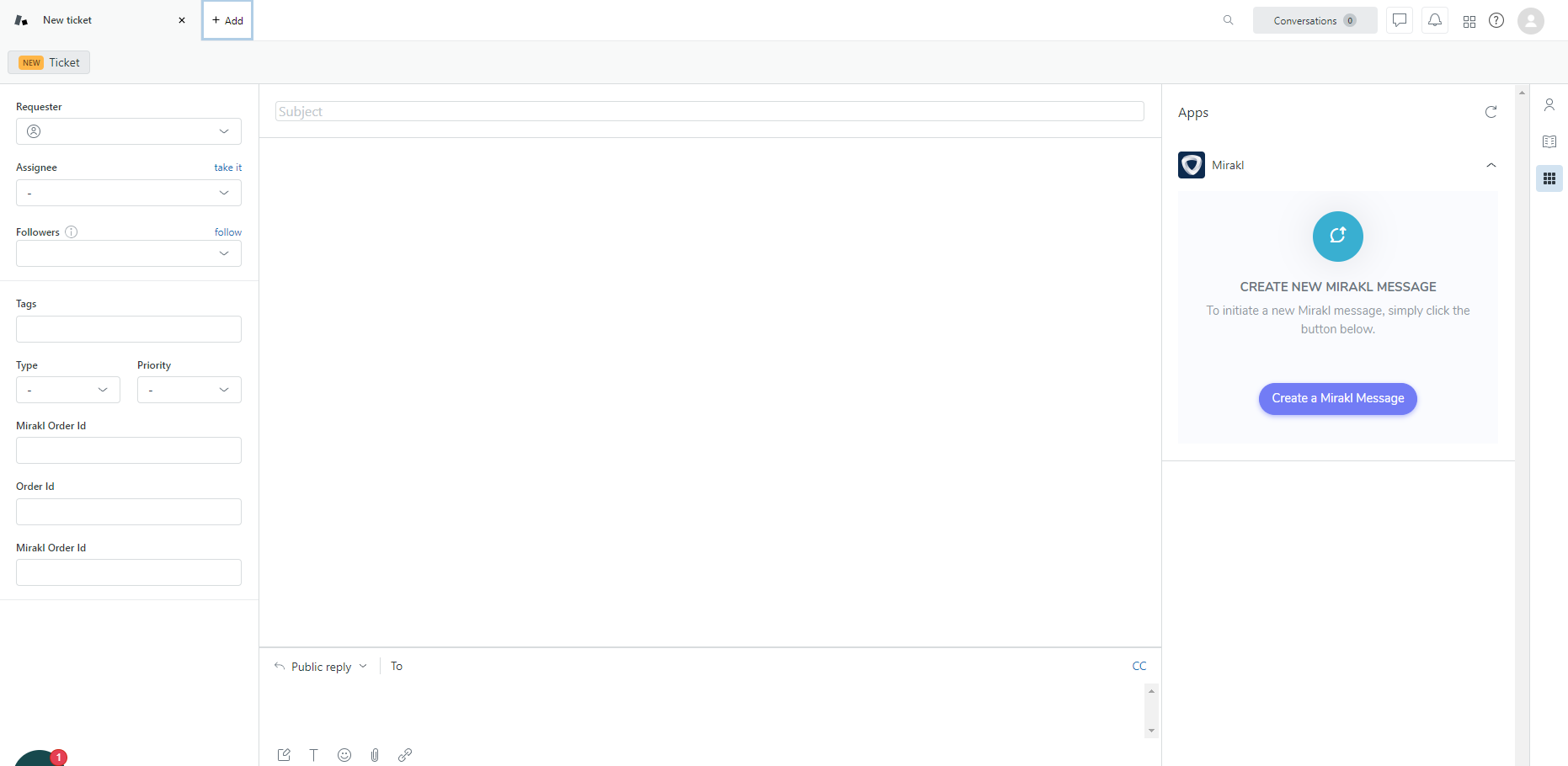
1. Click on 'New Ticket' in Zendesk to initiate a new support ticket.
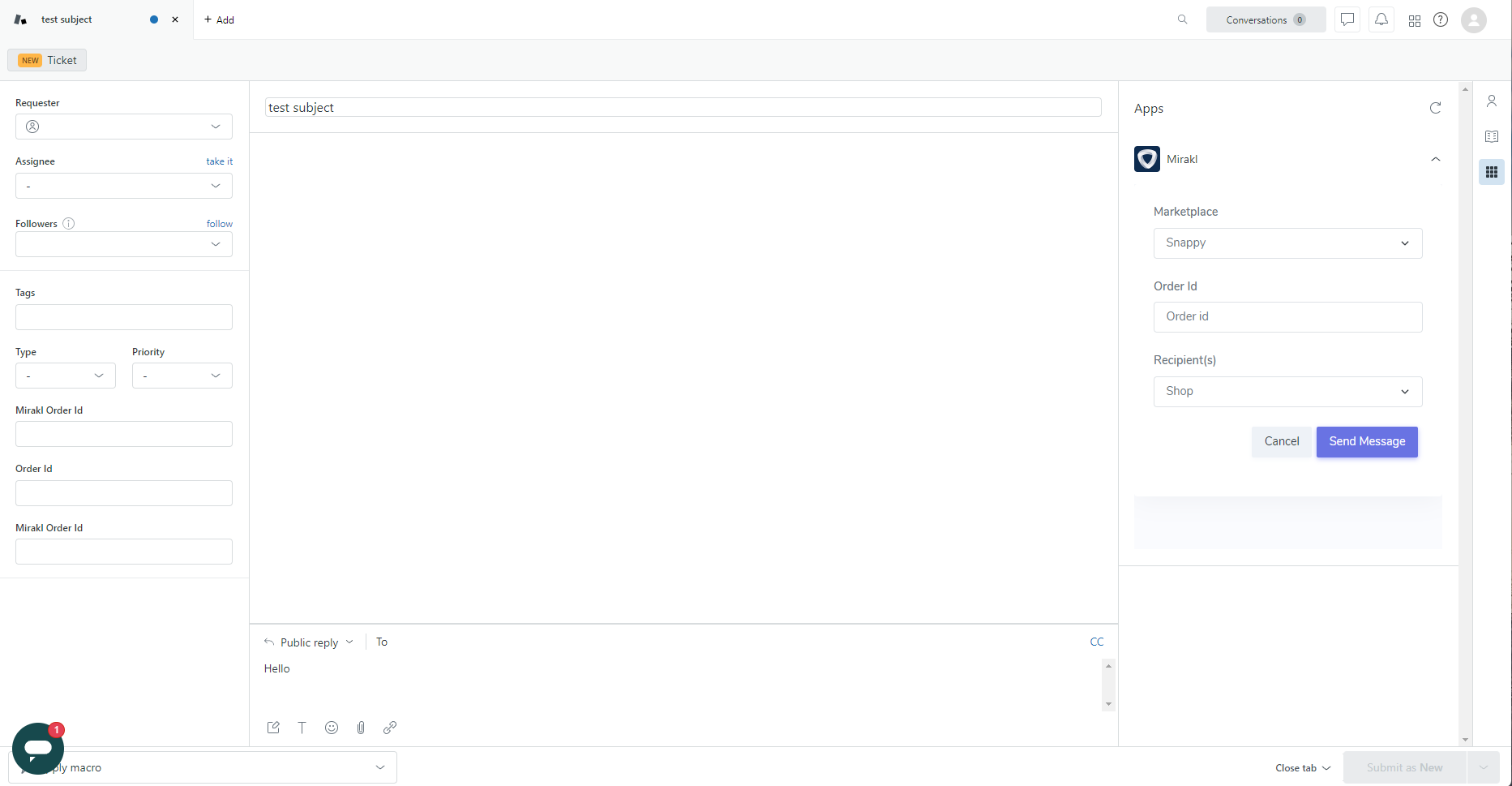
2. Within the Mirakl application, click on 'Create Mirakl Message.' This action will load your data to prepare for sending the message.
3. When creating a message, ensure that you include the following information as part of your ticket:
* Subject
* Comment
* Order ID
4. Click 'Send Message' to dispatch the message to Mirakl.
By following these steps, you can fully utilize the Message Creation feature to streamline communication between Zendesk and Mirakl, providing a seamless experience for both your team and your customers.