> For the complete documentation index, see [llms.txt](https://docs.juble.io/llms.txt). Markdown versions of documentation pages are available by appending `.md` to page URLs; this page is available as [Markdown](https://docs.juble.io/misc/zendesk-legacy-app/mirakl/add-account.md).
# Add account
{% hint style="info" %}
**Good to know:** You can add multiple accounts if you happen to have a partnership with several Mirakl vendors
{% endhint %}
## Generate a Mirakl API Key
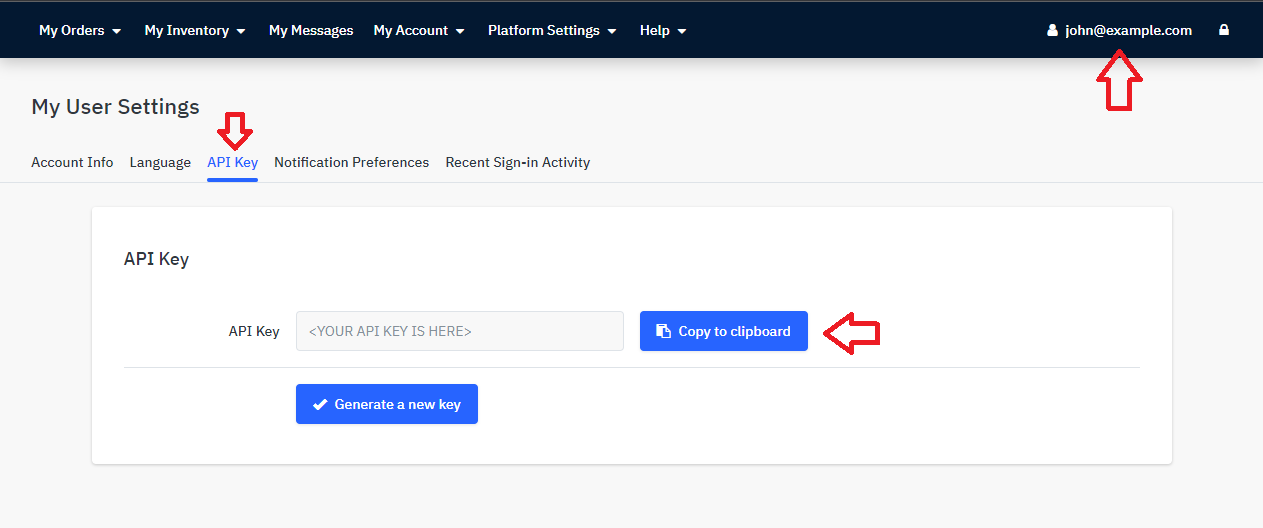
To generate the Mirakl API Key (See screenshot below):
1. Log into your desired Mirakl account: https\://\[ACCOUNT].mirakl.net/mmp/shop/user/api
2. Click on your email address on the top right corner
3. Select the tab 'API Key'
4. Copy your API Key
## Create a new Mirakl account in Zendesk
To create a new Mirakl account, follow the steps below:
1. Sign in to your Zendesk Support account
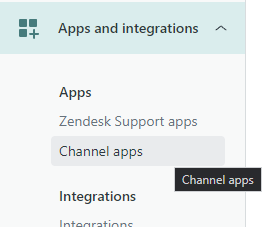
2. Go to your Zendesk Admin Center and click on the Channel apps menu.
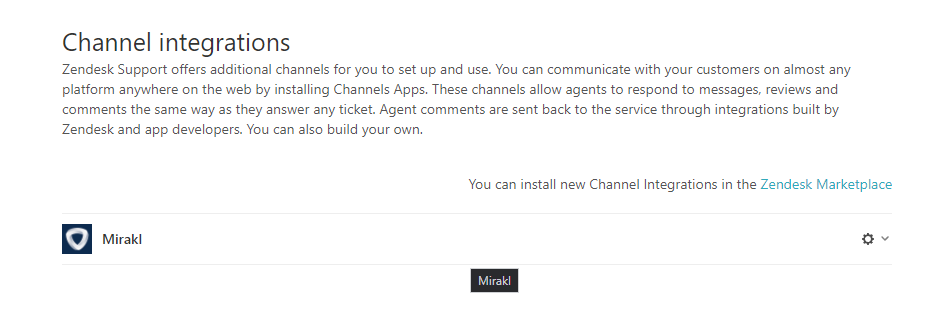
3. Select your Mirakl integration installed.
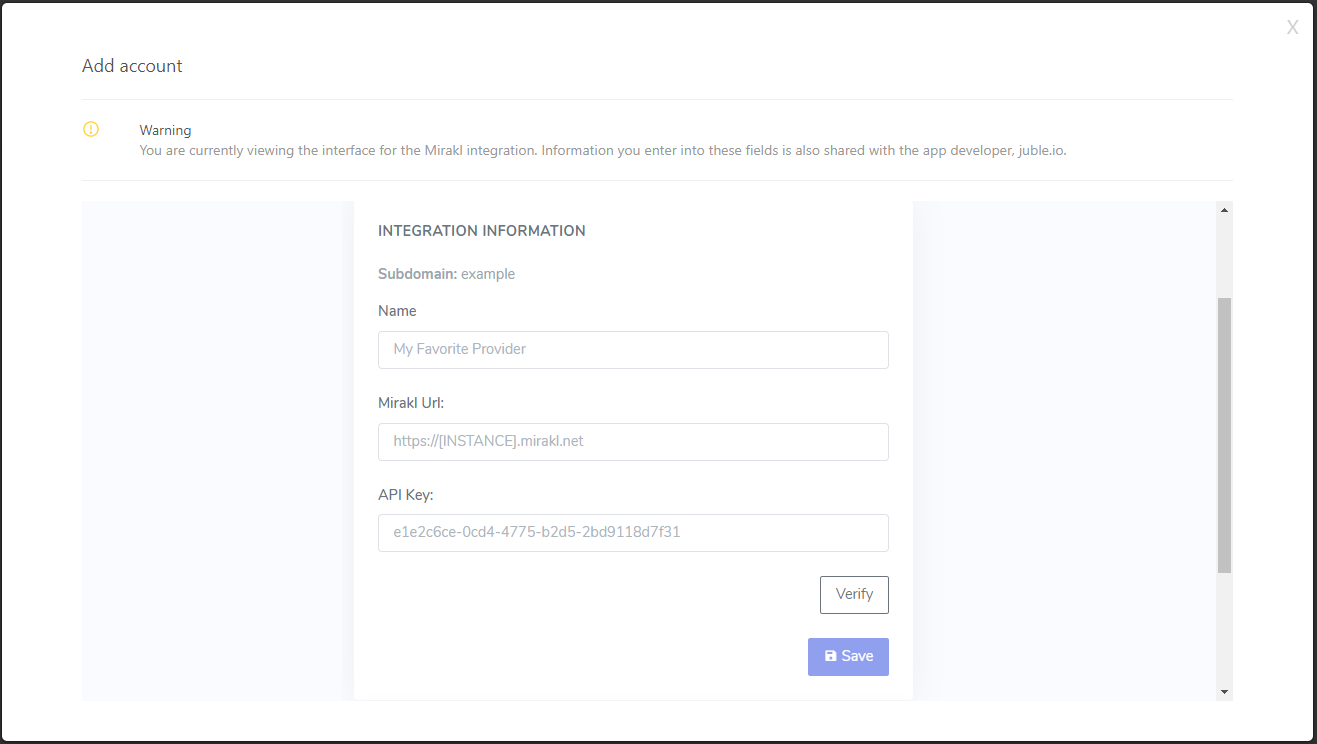
4. Click on Add account
5\. Enter the desired information regarding, the name of the account, the Mirakl URL and the API Key
6\. Verify the connection and Save the information
{% hint style="success" %}
**Congratulations!** Your account is now setup and will receive new tickets soon!
{% endhint %}
{% hint style="info" %}
**Good to know:** New messages are pulled every 2 mins.
{% endhint %}