Add account
Create a new Miravia account
Section titled “Create a new Miravia account”To create a new Miravia account, follow the steps below:
- Sign in to your Juble.io account using your credentials.
- In the main menu, go to the “Channels” section.
- Within the “Channels” section, click on the “Add Channel” button to initiate the process of connecting a new marketplace integration.
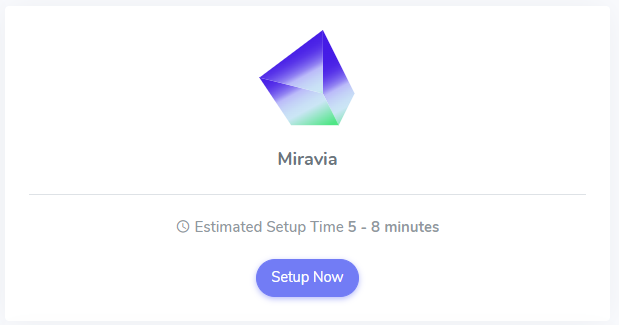
- From the available marketplace options, choose “Miravia” to proceed with linking your Miravia account.
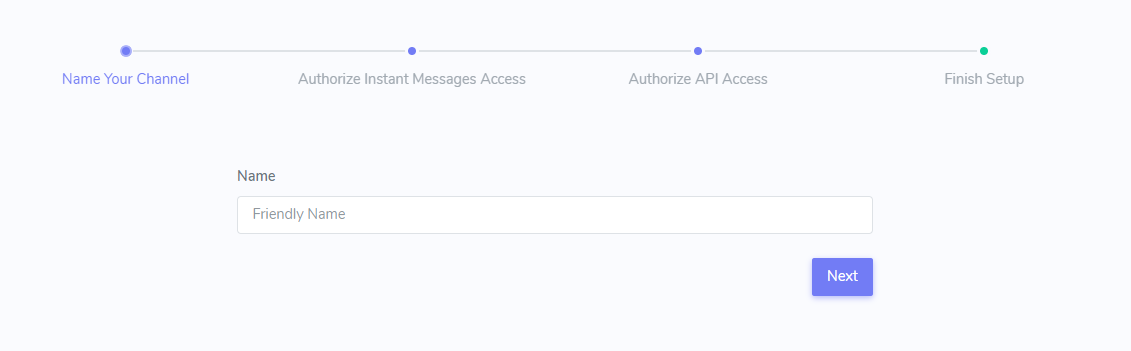
- Provide a Friendly Name: Assign a clear and descriptive name to this specific integration within your Juble.io account, especially if you manage multiple marketplaces.
Authorize Juble.io Access to your Miravia - Instant Messages
Section titled “Authorize Juble.io Access to your Miravia - Instant Messages”- Authorize Instant Messages Access: Click on the “Authorize” button. This will redirect you to Miravia where you will be asked to confirm and authorize Juble.io’s access to your instant messages.
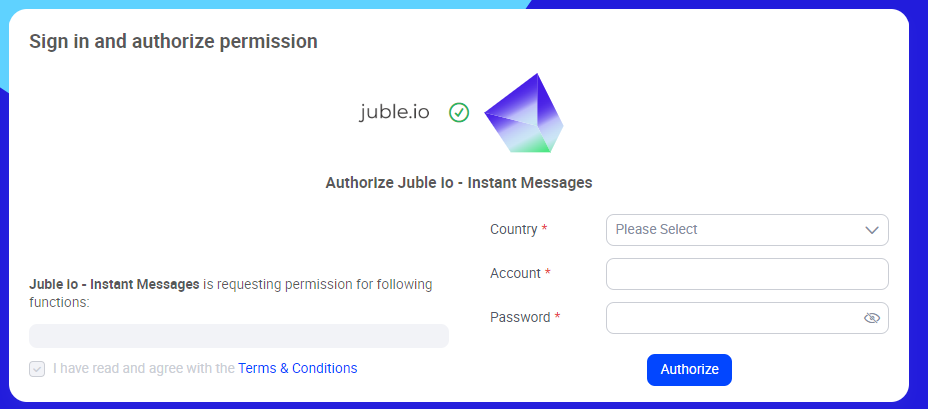
- Confirmation: Once authorization is complete, you’ll be redirected back to Juble.io. Your Miravia instant messages will now be integrated with Juble.io, and you can start managing your channels effectively.
Authorize Juble.io Access to your Miravia - API
Section titled “Authorize Juble.io Access to your Miravia - API”- Authorize API Access: Click on the “Authorize” button. This will redirect you to Miravia where you will be asked to confirm and authorize Juble.io’s access to your order information.
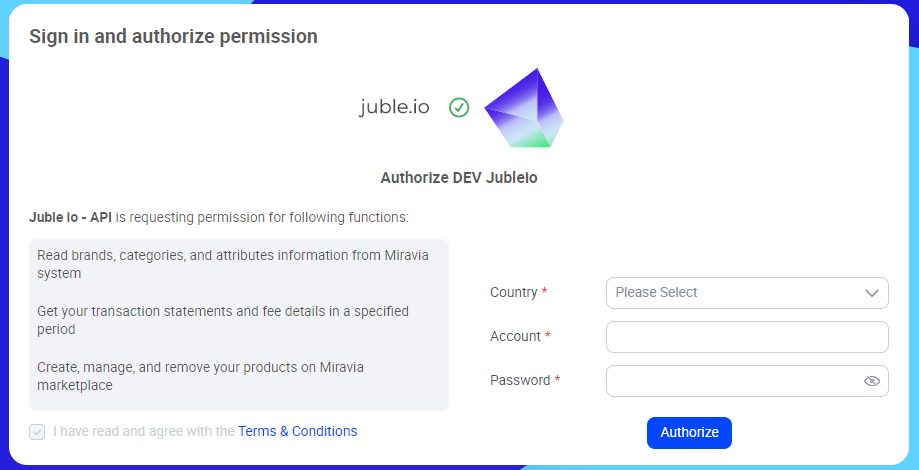
- Confirmation: Once authorization is complete, you’ll be redirected back to Juble.io. Your Miravia API will now be integrated with Juble.io, and you can start managing your channels effectively.
Finalize Your Miravia Integration
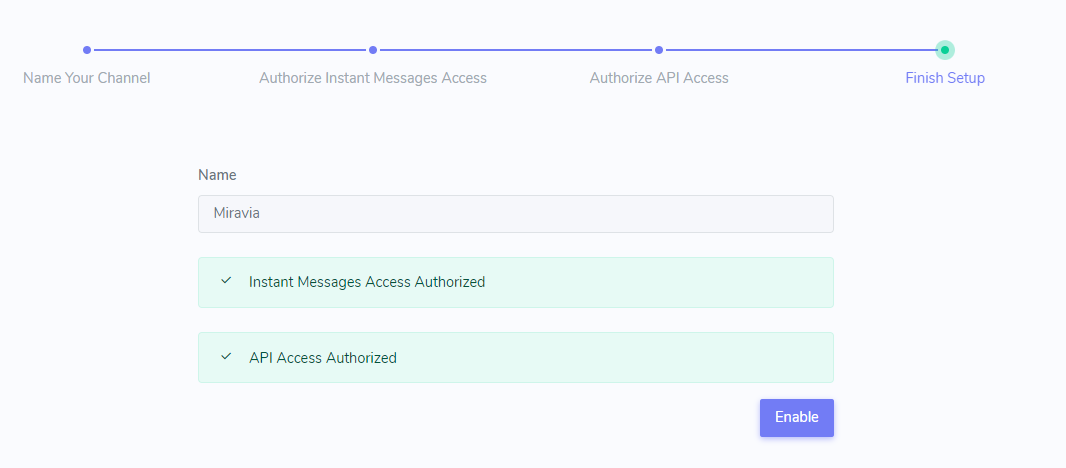
Section titled “Finalize Your Miravia Integration”- Enable Connection:
Once you’ve reviewed and granted the necessary permissions, click the “Enable” button to finalize the integration process.